If you haven’t used progress bars before, you probably think they add unnecessary complexity or are hard to maintain – but that’s not the case. Adding a progress bar actually only requires a few lines of code. In these few lines, let’s see how to add progress bars to both command-line scripts and PySimpleGUI UIs.
Below we’ll introduce 4 commonly used Python progress bar libraries:
Progress
The first Python library to introduce is Progress. You just need to define the number of iterations, the progress bar type, and inform the progress bar on each iteration.
python
import time
from progress.bar import IncrementalBar

mylist = [1,2,3,4,5,6,7,8]
bar = IncrementalBar('Countdown', max = len(mylist))

for item in mylist:
    bar.next()
    time.sleep(1)

bar.finish()
The progress bar effect achieved by Progress looks like this:
text
Countdown |████████████████████████████████████████| 8/8

If you don’t like this progress bar format, you can choose from other available types.

Documentation: https://pypi.org/project/progress/1.5/
tqdm
Now let’s look at the tqdm library. Similar to the libraries we’ve seen before, these two lines of code are also quite similar, with slight differences in setup:
python
import time
from tqdm import tqdm

mylist = [1,2,3,4,5,6,7,8]

for i in tqdm(mylist):
    time.sleep(1)
The progress bar effect achieved by tqdm looks like this:
text
100%|████████████████████████████████████████| 8/8 [00:08<00:00, 1.00s/it]

This progress bar also provides several configuration options.
Documentation: https://tqdm.github.io/
Alive Progress
As the name suggests, this library makes progress bars come alive, adding some animation effects beyond what we’ve seen in previous progress bars.
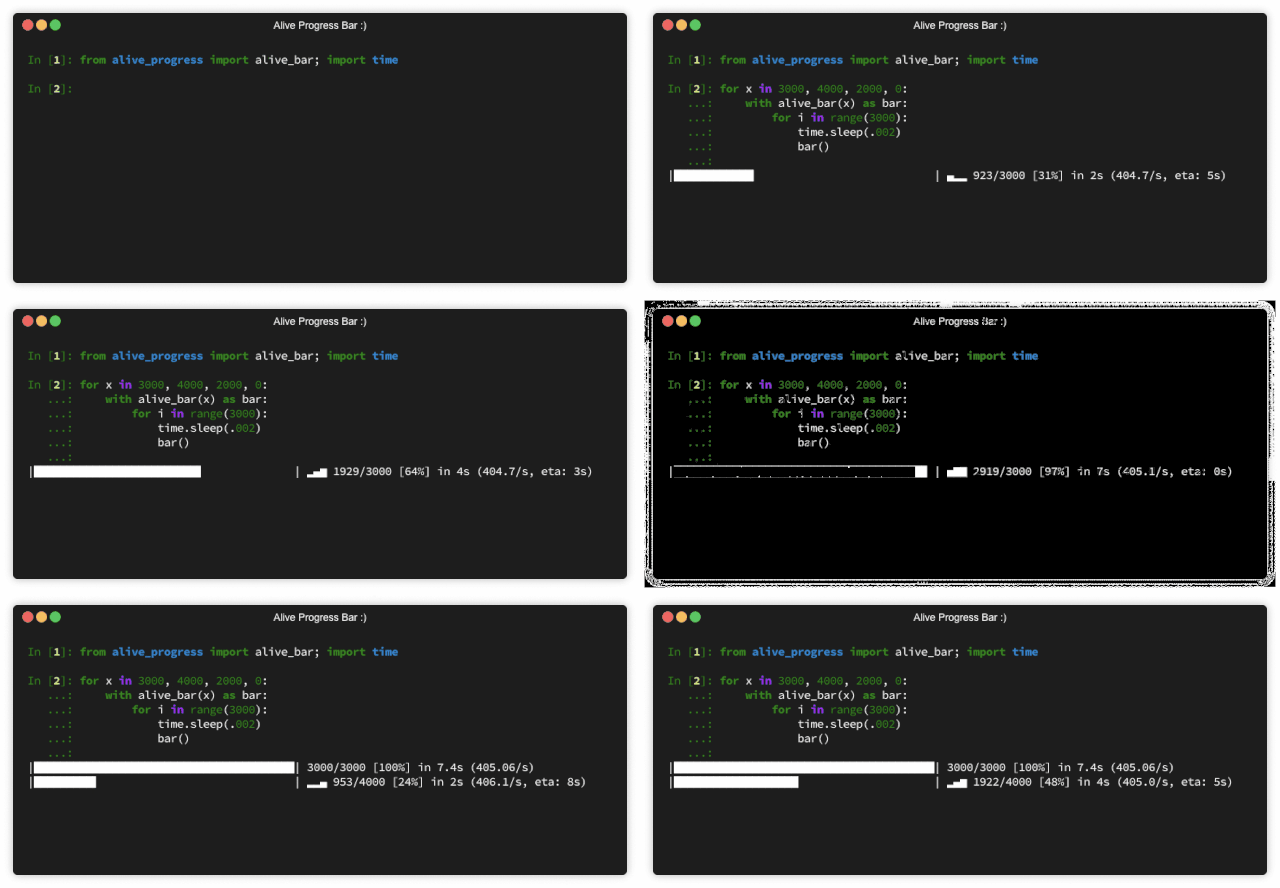
The code approach is quite similar:
python
from alive_progress import alive_bar
import time

mylist = [1,2,3,4,5,6,7,8]

with alive_bar(len(mylist)) as bar:
    for i in mylist:
        bar()
        time.sleep(1)

The progress bar appearance is about what you’d expect, but with animated elements.
This progress bar has some unique features that make it fun to use. For details, check the project:
GitHub: https://github.com/rsalmei/alive-progress
PySimpleGUI
Using PySimpleGUI to get graphical progress bars
We can add a simple line of code to get graphical progress bars in command-line scripts.
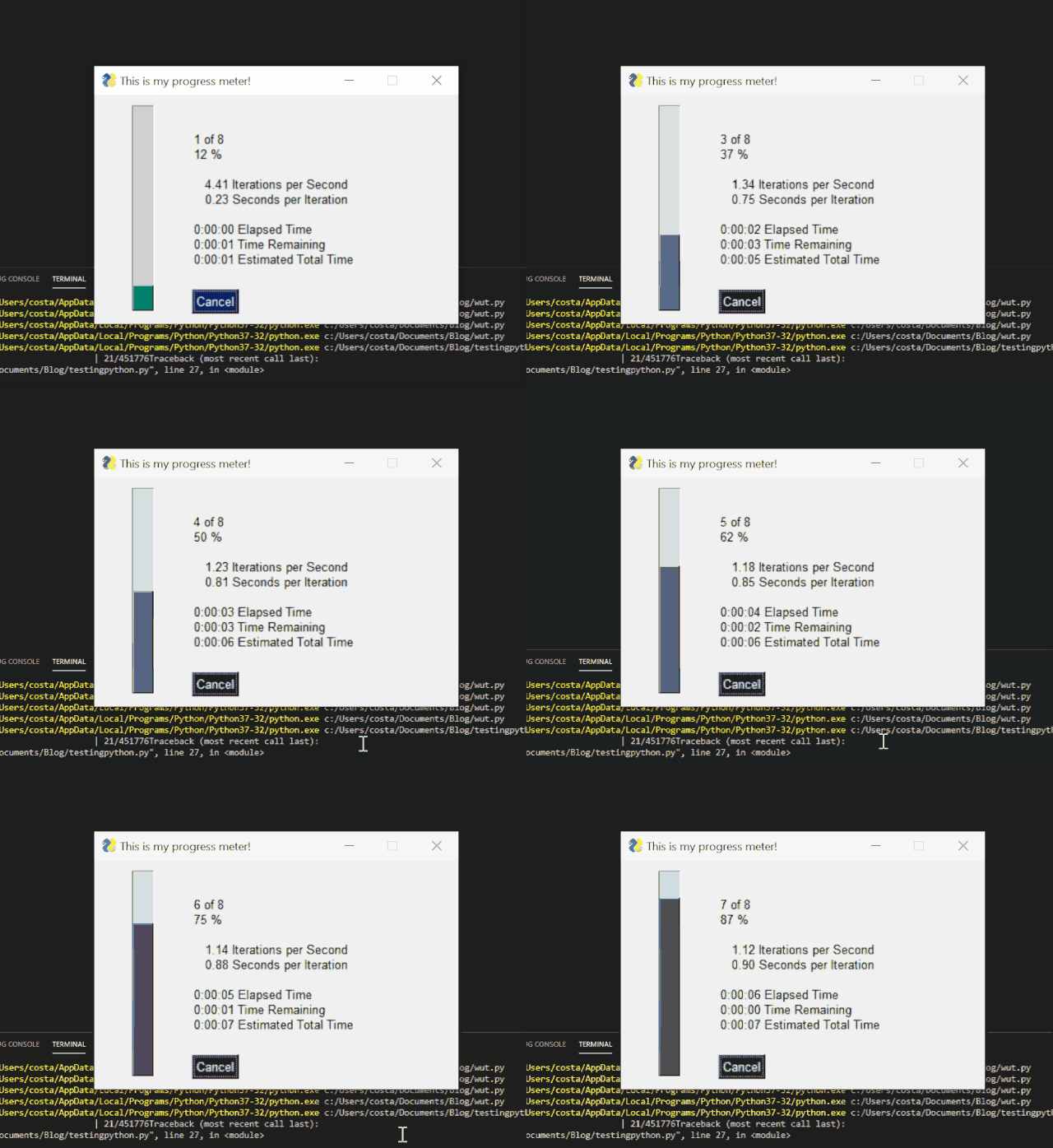
To achieve this, the code we need is:
python
import PySimpleGUI as sg
import time

mylist = [1,2,3,4,5,6,7,8]

for i, item in enumerate(mylist):
    sg.one_line_progress_meter('This is my progress meter!', i+1, len(mylist), '-key-')
    time.sleep(1)
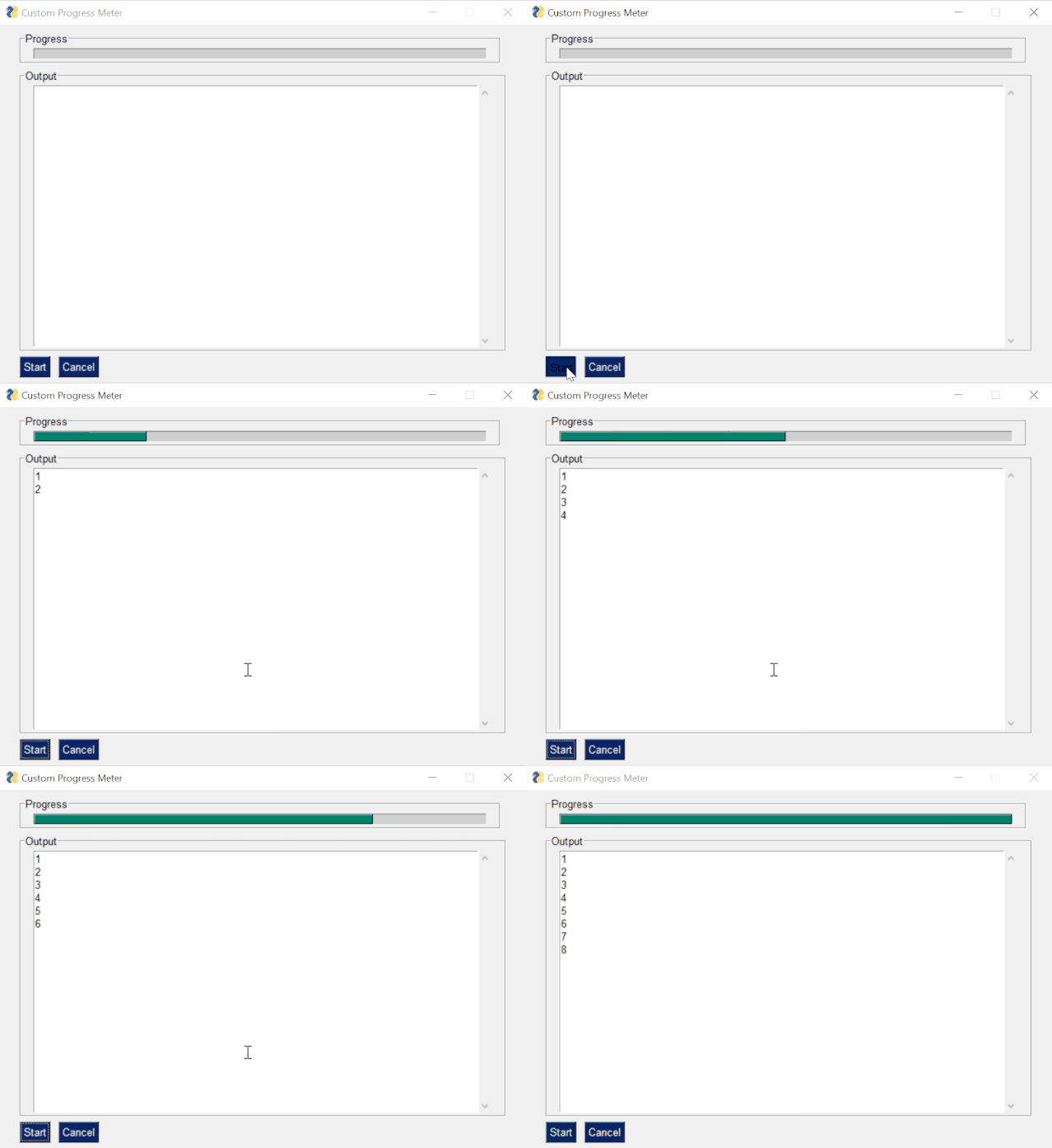
The project author previously discussed on GitHub “how to quickly launch a Python UI and then use the UI to create comparison tools.” In this project, the author also discussed how to integrate progress bars.
Here’s the code:
python
import PySimpleGUI as sg
import time

mylist = [1,2,3,4,5,6,7,8]

progressbar = [[sg.ProgressBar(len(mylist), orientation='h', size=(51, 10), key='progressbar')]]
outputwin = [[sg.Output(size=(78,20))]]
layout = [[sg.Frame('Progress',layout= progressbar)], [sg.Frame('Output', layout = outputwin)], [sg.Submit('Start'),sg.Cancel()]]

window = sg.Window('Custom Progress Meter', layout)
progress_bar = window['progressbar']

while True:
    event, values = window.read(timeout=10)
    if event == 'Cancel' or event is None:
        break
    elif event == 'Start':
        for i,item in enumerate(mylist):
            print(item)
            time.sleep(1)
            progress_bar.UpdateBar(i + 1)

window.close()
So yes, using progress bars in Python scripts only takes a few lines of code – it’s not complicated at all. With progress bars, you won’t have to guess how your script is running anymore.