auto-py-to-exe is a graphical tool used to package Python programs into executable files. This article primarily introduces how to use auto-py-to-exe to package Python programs. Based on PyInstaller, auto-py-to-exe adds a GUI interface, making it simpler and more convenient to use compared to the command-line PyInstaller.
2. Installing auto-py-to-exe
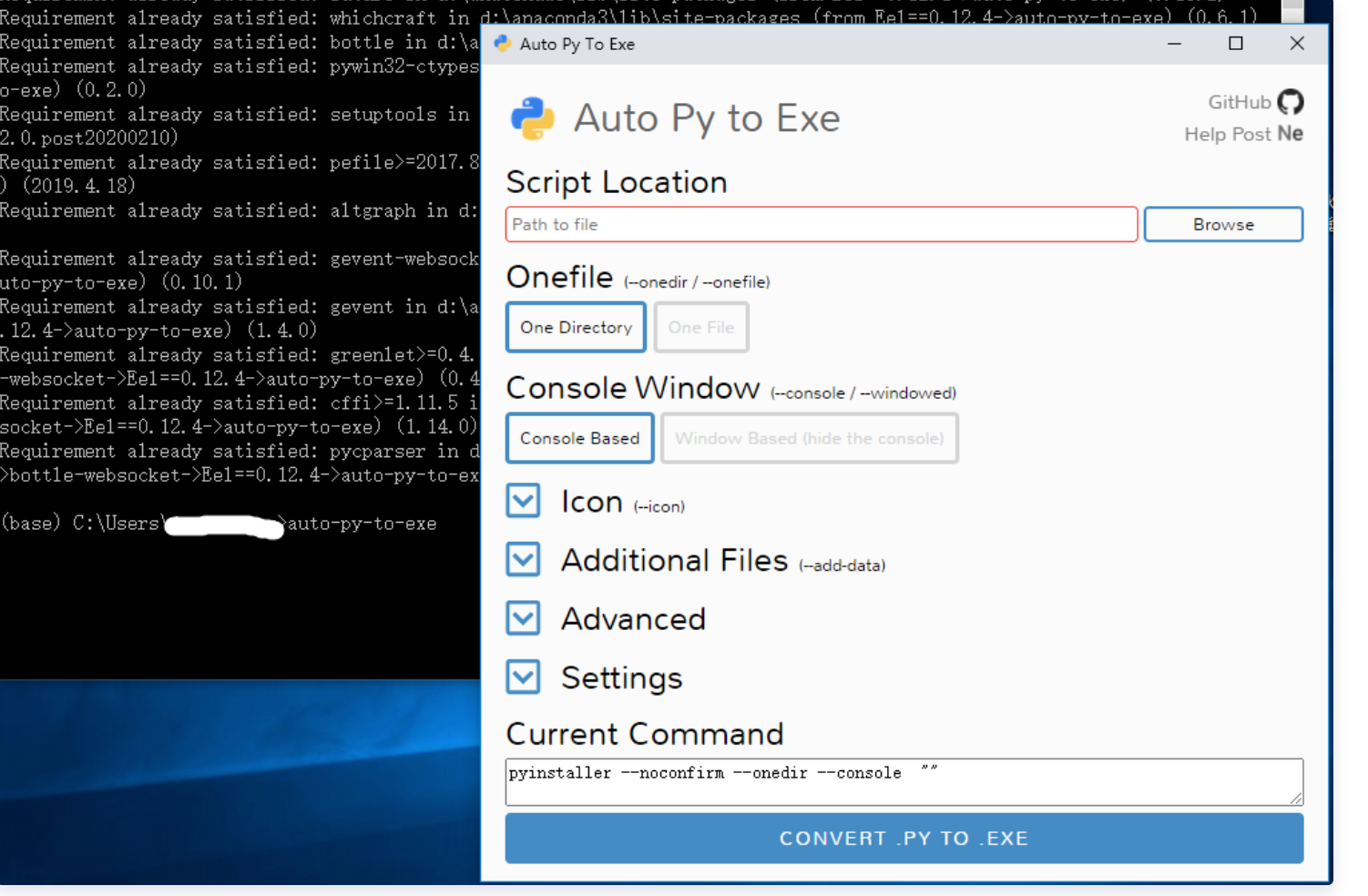
First, ensure your Python environment is version 2.7 or higher. Then, open the command prompt (cmd) and enter: pip install auto-py-to-exe. After entering this command, pip will install the auto-py-to-exe package. Once the installation is complete, you can launch the auto-py-to-exe program by typing auto-py-to-exe in the cmd.
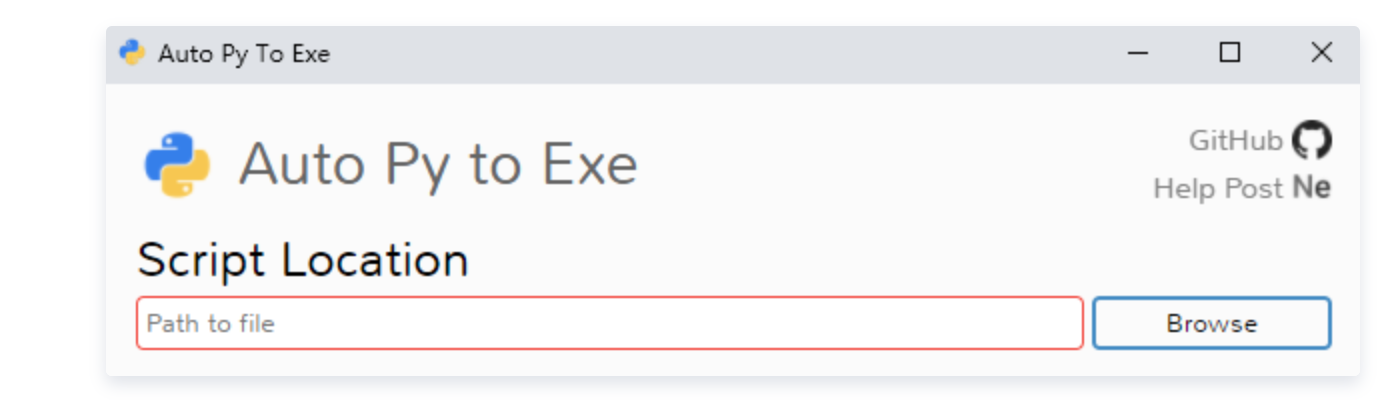
When you see the interface shown in the image above, auto-py-to-exe has been successfully installed.
3. Introduction to Some auto-py-to-exe Options
When using auto-py-to-exe to package a Python program, there are several configuration options that need to be specified. Understanding the function of these options is crucial. Below, I will introduce some of the important ones.
(1) Script Location This is where you specify the main Python file (.py) that you want to package.
(2) Onefile Under the “Onefile” setting, there are two options:
One Directory: After packaging, the program will be presented as a folder containing all necessary files and the executable.
One File: After packaging, the program will be a single .exe file.
(3) Console Window This setting controls whether a console window appears when the packaged program runs.
Console Based: A console/terminal window will be displayed when the packaged program runs.
Window Based (hide the console): The console window will be hidden. This is primarily used for packaging Python programs with a GUI.
(4) Icon This is used to specify the icon for the packaged executable.
4. auto-py-to-exe Practical Example
This section uses a calculator program to demonstrate how to package a program with auto-py-to-exe.
The packaging process with auto-py-to-exe can be divided into three main steps:
Launch auto-py-to-exe.
Configure the packaging options.
Check the packaging result.
Step 1: Launch auto-py-to-exe Open the command prompt (cmd), type auto-py-to-exe, and press Enter. Once auto-py-to-exe opens, we can proceed with the configuration.
For packaging, the main configurations we need to set are:
Script Location
Onefile
Console Window
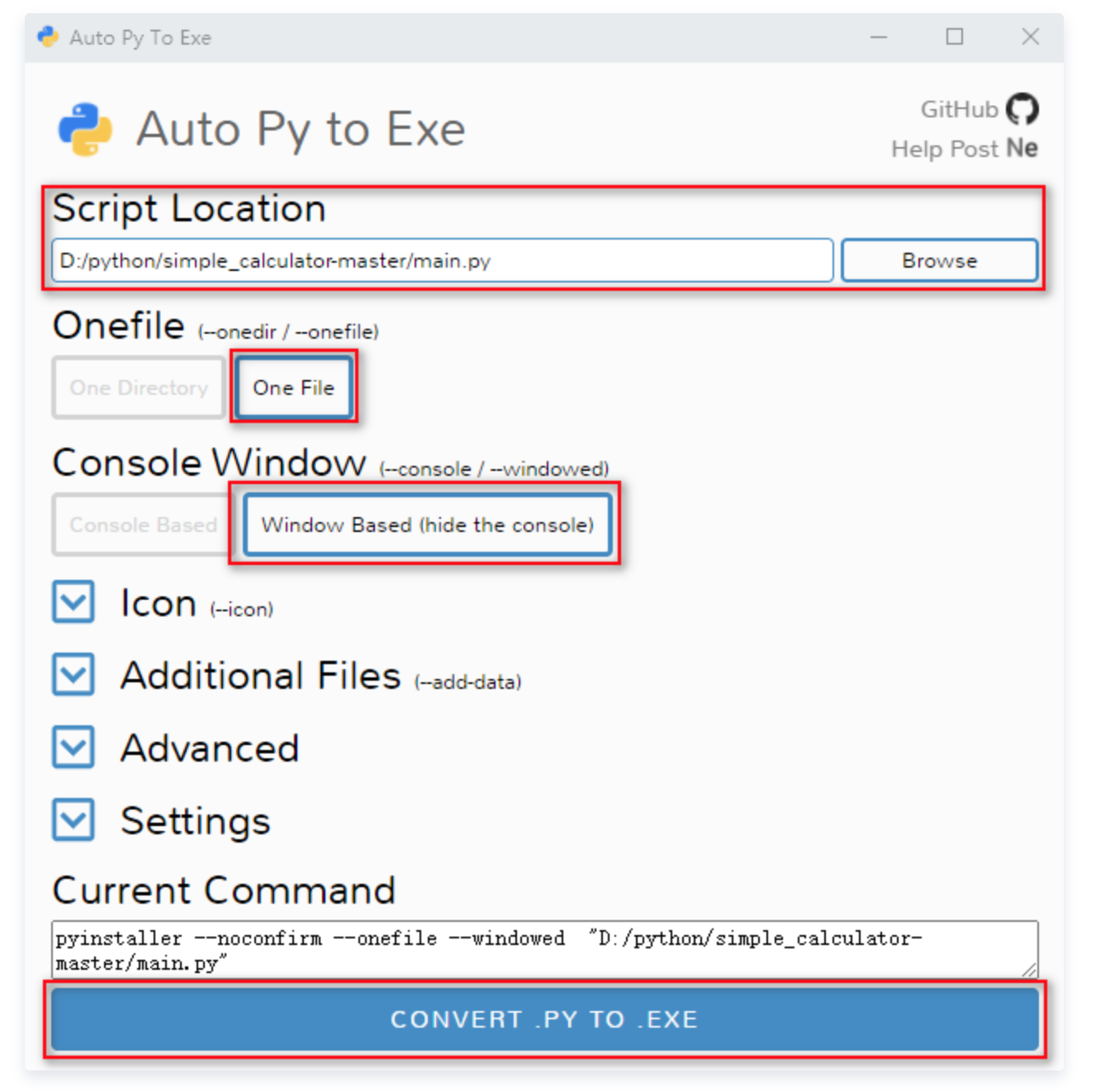
Script Location: Select the main program file. In the calculator project, we select main.py.
Onefile: Select “One File” for a cleaner, single-file output.
Console Window: Since the calculator project has a GUI, select “Window Based (hide the console)”.
Icon: Optionally select an .ico file for the executable icon. This step is not mandatory.
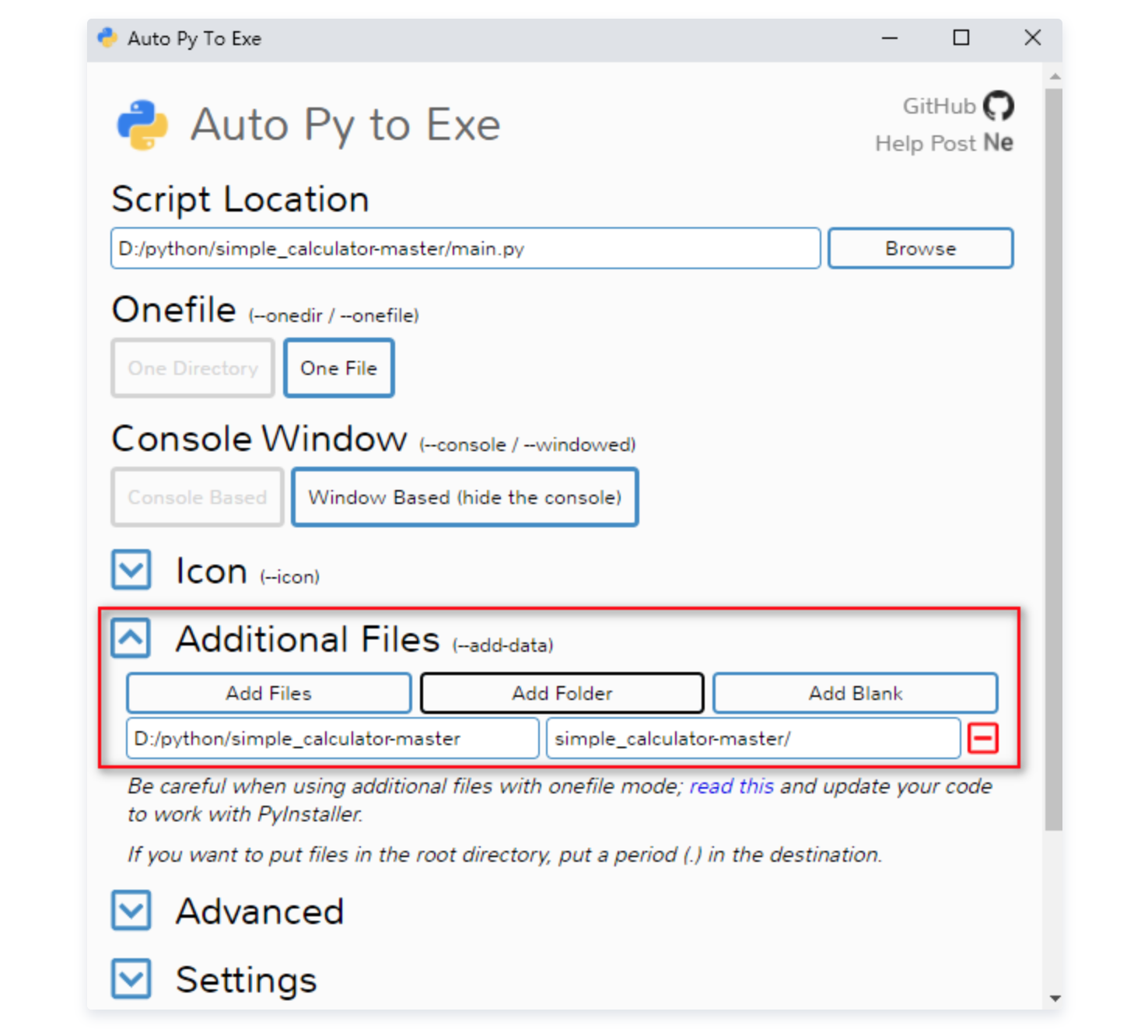
Important Note: If your program uses its own modules (outside the standard library), you must add the module directories to the “Additional Files” section. Failure to do so may result in a “Failed to execute script XXX” error.
In the calculator program, all custom modules are located in the calculation directory. Therefore, we need to add the path to the calculation directory in “Additional Files”.
After completing the configuration, click the “CONVERT .PY TO .EXE” button.
This completes the packaging of our calculator project.
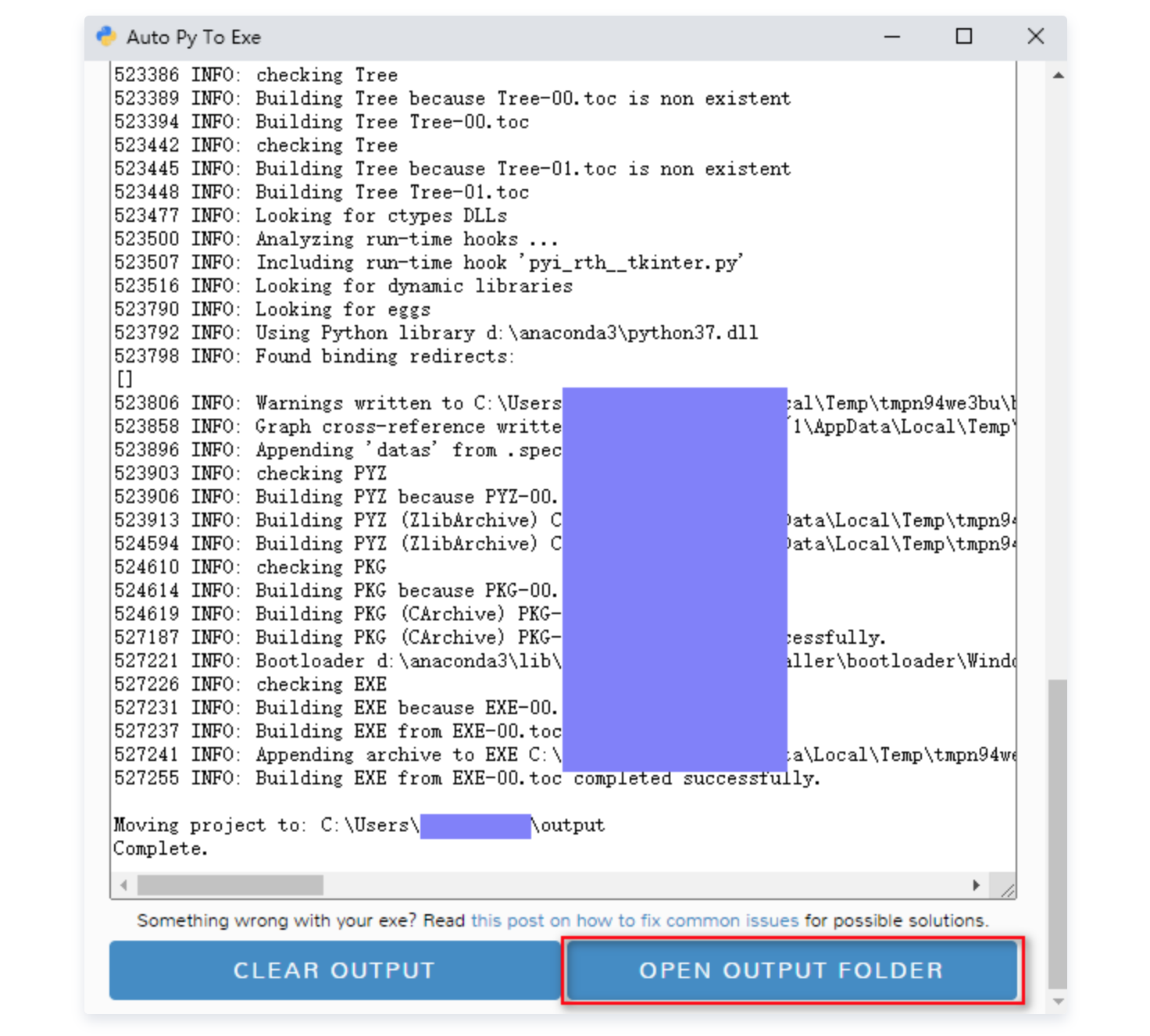
Step 3: Check the Packaging Result After the packaging process finishes, you can click the “OPEN OUTPUT FOLDER” button. This will open the directory containing the packaged files.
In the output directory, you will see a main.exe file – this is our packaged executable.
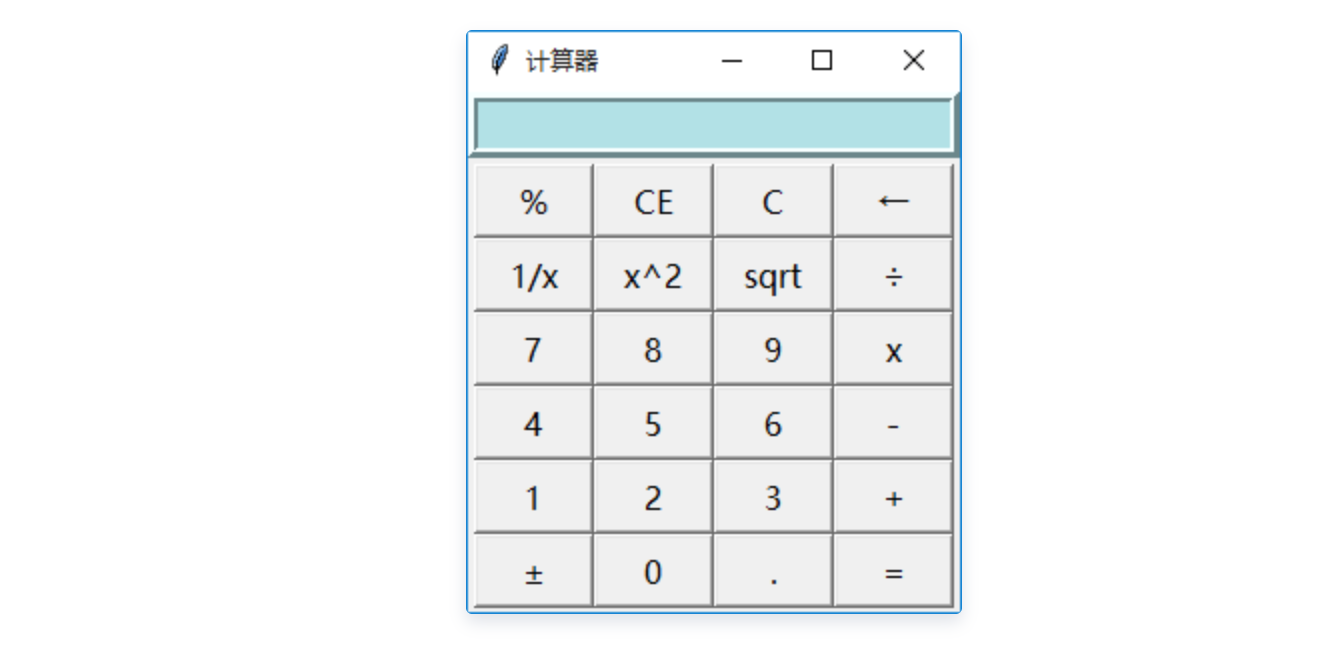
Double-click main.exe, and a calculator program window will appear.
At this point, the packaging task is successfully completed!
5. Summary
This article primarily introduced how to use auto-py-to-exe to package Python programs. However, it only covered the basics for simple Python programs. Packaging more complex programs will likely require configurations beyond those discussed here.
To gain a deeper understanding of auto-py-to-exe, it is highly recommended to study PyInstaller. Since auto-py-to-exe is built on top of PyInstaller, learning about PyInstaller’s options and advanced features will significantly enhance your ability to use auto-py-to-exe effectively for more complex scenarios.
What is DocuTranslate? DocuTranslate is a free and open-source local-first translation utility designed to bridge the gap between complex document formats and the power of Large Language Models (LLMs). Unlike…
What is PaddleOCR? PaddleOCR is a a free open-source, production-ready OCR and document AI engine that delivers end-to-end intelligent document processing, from raw image/text extraction to structured, AI-friendly output (like…
What is OpenApps? OpenApps is a lightweight, Python-based framework designed for researching, training, and evaluating multimodal AI agents that interact with applications just like humans (via clicking, typing, and scrolling)….
What is AirLLM? AirLLM is a revolutionary Python library that shatters the hardware barrier for Generative AI, enabling developers to run massive 70B+ parameter models on standard consumer-grade hardware. By…
What is Adala? Adala is a paradigm shift in how we approach data labeling and agent intelligence. At its core, Adala is an Autonomous Data (Labeling) Agent framework designed to…